

What You’ll Learn
- Navigate the main interface components
- Use the chat panel effectively
- Work with the integrated editor and terminal
- Review changes
Interface Overview
Verdent uses a multi-panel layout with six main areas:- Top Bar - Project switching, workspace management, and user account
- Workspace Bar - Current workspace, branch, workspace actions, and panel toggles
- Left Panel - Task list and task creation
- Sidebar - Source Control and Explorer tabs
- Middle Panel - Chat view, integrated editor, and terminal
- Chat Input Box - Text input with context controls, mode selection, and send button
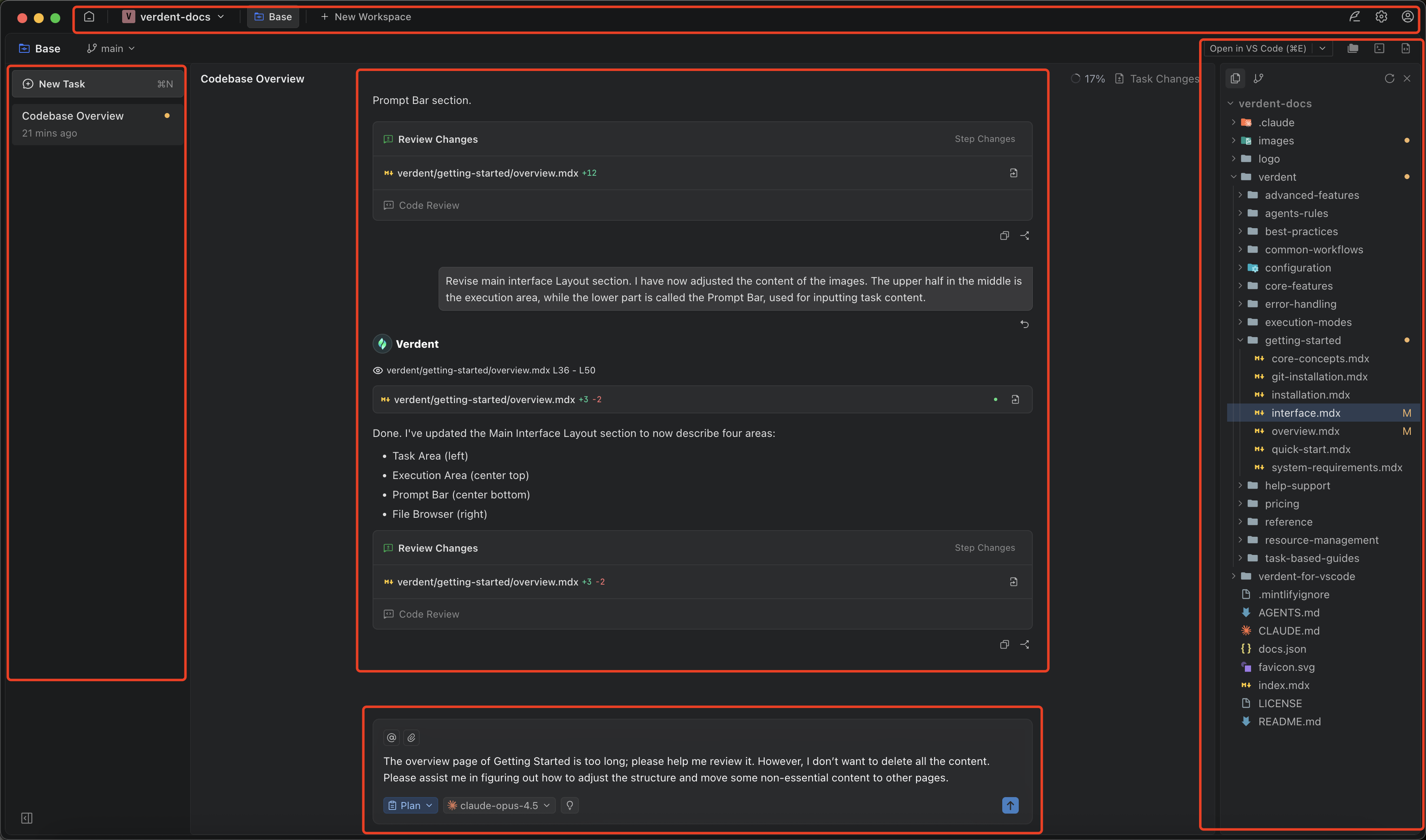
Top Bar
The top bar provides quick access to essential functions:| Component | Purpose |
|---|---|
| Verdent | App menu (About, Settings, Reload) |
| Home | Return to home screen |
| Current Project | Shows current project name, click to switch projects |
| New Workspace | Create a new isolated workspace |
| All Workspaces | Switch between active workspaces |
| Feedback | Submit feedback or report issues |
| Settings | Open settings modal |
| User Menu | Account info, credit balance |
- Click Verdent → Access About, Settings, Reload
- Click Home → Return to home screen
- Click project name → Switch projects or access recent projects
- Click New Workspace → Create isolated workspace for parallel work
- Click All Workspaces → Switch between active workspaces
- Click Feedback → Submit feedback or report issues
- Click Settings → Configure Verdent preferences
- Click User Menu → View credits, account info
Workspace Bar
The workspace bar sits below the top bar and provides workspace-specific controls: Left Side:| Component | Description |
|---|---|
| Current Workspace | Shows the active workspace name |
| Branch | Indicates the current git branch (can change branch on base workspace) |
| Delete Workspace | Remove the workspace (when available) |
| Workspace Actions | Dropdown with Rebase to main branch, Sync with main branch |
| Component | Description |
|---|---|
| Open in VS Code (Ctrl+E) | Open workspace in VS Code |
| Toggle Explorer and Source Control (Ctrl+B) | Show/hide Sidebar |
| Terminal Panel (Ctrl+J or Ctrl+`) | Toggle terminal panel |
| Editor (Ctrl+L) | Focus the editor |
Left Panel: Tasks
The left panel manages your tasks within the current workspace: Task List:- Lists all tasks in current workspace
- Each task is a separate conversation thread
- Click to switch between tasks
| Action | Description |
|---|---|
| New Task | Start a new task (Cmd+N / Ctrl+N) |
| Switch Task | Click any task to switch to it |
Tasks share the workspace file state. Context is preserved when switching between tasks.
Sidebar: Source Control & Explorer
The Sidebar provides file management and version control:- Source Control
- Explorer
Version Control: (
Ctrl+Shift+G / Cmd+Shift+G)- View changed files
- Stage and commit changes
- Diff view for individual files
- Revert changes
| Control | Description |
|---|---|
| Refresh | Refresh file list and status |
| Close | Hide the Sidebar |
Middle Panel
The middle panel displays your work and can show multiple views. Task Changes - Click to view all files changed within the current task. Shows modifications for the current workspace only, not across different workspaces. Context Remaining - Indicates how much context remains within the model for the current conversation.- Chat View
- Editor View
- Terminal View
Chat Panel:
- Full conversation history with Verdent
- Code blocks with syntax highlighting
- File references and links
- Expandable tool usage details
- Scroll through conversation history
- Copy code blocks with one click
- Click file paths to open in editor
- Expand/collapse long responses
- Rollback to this point - Revert the chat to a specific point in time
Chat Input Box
Chat Input Box is where you describe what you want Verdent to do. It supports natural-language requests, quick context attachments, and run settings.
- Type your request in the input area.
- Press Enter or click Send to submit.
- Use
/for commands. - Use
@to search files.
- Mode: choose how Verdent works, Agent Mode (execute) or Plan Mode (clarify + plan).
- Model / Preset: select the model used for this task.
- Thinking depth: adjust how deeply the model reasons (if available).

- @ (Codebase files): attach files from the current repository.
- Pin (Local files): attach files from your computer.

| Component | Description |
|---|---|
| Text Area | Type your prompts and messages |
| Send Button | Submit your message (Enter) |
| Add Context | Reference files with @-mentions |
| Add Images | Upload screenshots or diagrams |
| Switch Mode | Toggle between Agent Mode and Plan Mode |
| Model Selector | Choose AI model for the task (Ctrl+/ / Cmd+/) |
- Press
Enterto send,Shift+Enterfor new line - Use
@filenameto reference specific files - Drag and drop images directly into the input
- Switch modes with
Shift+TaborCtrl+. - Switch models with
Ctrl+/orCmd+/
Review Changes Component
After Verdent completes changes, the Review Changes component provides visibility: Tabs:| Tab | Description |
|---|---|
| Code Review | Structured feedback and suggestions |
- View exact changes made by Verdent
- Natural language summaries of modifications
- File links to jump to specific changes
- Transparent view with no black boxes
In Agent Mode, changes execute autonomously. Use Review Changes after completion to understand what changed, then use Source Control to commit, modify, or revert.
Terminal Panel
The integrated terminal provides command-line access: Terminal Features:| Feature | Description |
|---|---|
| Auto-Directory | Opens in project/workspace root |
| Multiple Tabs | Open multiple terminal instances |
| Command History | Access previous commands |
| Copy/Paste | Standard keyboard shortcuts |
- Terminal commands executed by Verdent appear here
- Manual command execution for testing
- View build output, test results, etc.
Keyboard Shortcuts
| Action | Windows | macOS |
|---|---|---|
| Send Message | Enter | Enter |
| New Line | Shift+Enter | Shift+Enter |
| New Task | Ctrl+N | Cmd+N |
| New Workspace | Ctrl+Shift+N | Cmd+Shift+N |
| Switch Mode | Shift+Tab or Ctrl+. | Shift+Tab or Cmd+. |
| Switch Model | Ctrl+/ | Cmd+/ |
| Open in VS Code | Ctrl+E | Cmd+E |
| Open Explorer | Ctrl+Shift+E | Cmd+Shift+E |
| Toggle Sidebar | Ctrl+B | Cmd+B |
| Terminal Panel | Ctrl+J or Ctrl+` | Cmd+J or Cmd+` |
| New Terminal | Ctrl+Shift+` | Cmd+Shift+` |
| Open Source Control | Ctrl+Shift+G | Cmd+Shift+G |
| Open Settings | Ctrl+, | Cmd+, |
| Editor | Ctrl+L | Cmd+L |
| Next Workspace | Ctrl+Tab | Ctrl+Tab |
| Previous Workspace | Ctrl+Shift+Tab | Ctrl+Shift+Tab |
Customization
Theme Settings:- Light, Dark, or System theme
- Settings → General → Appearance
- Panel sizes (adjustable)
- Font family and size
- Tab size and indentation
- Line numbers and word wrap
FAQs
How do I resize the panels?
How do I resize the panels?
Drag the borders between panels to resize. Your layout preferences are saved automatically.
Can I detach panels into separate windows?
Can I detach panels into separate windows?
Currently, all panels remain within the main window. This helps maintain context between chat, editor, and terminal.
What's the difference between a workspace and a task?
What's the difference between a workspace and a task?
A workspace is an isolated git worktree for parallel work. A task is a conversation thread within a workspace. Multiple tasks can run in the same workspace and share the workspace file state.
How do I switch between workspaces?
How do I switch between workspaces?
Click All Workspaces in the top bar to see and switch between active workspaces.
Can I run multiple tasks in the same workspace?
Can I run multiple tasks in the same workspace?
Yes. Tasks share the workspace file state, and context is preserved when switching between tasks.
How do I see what files changed in my current task?
How do I see what files changed in my current task?
Click Task Changes in the middle panel to view all files changed within the current task. This shows modifications for the current workspace only, not across different workspaces.
What does 'Context Remaining' mean?
What does 'Context Remaining' mean?
Context Remaining shows how much model context is left for the current conversation. When context runs low, consider starting a new task.
How do I revert changes made by Verdent?
How do I revert changes made by Verdent?
Use Source Control (
Ctrl+Shift+G / Cmd+Shift+G) to discard or revert specific file changes.How do I rollback a conversation?
How do I rollback a conversation?
Hover over any message in the chat and click Rollback to this point to revert the conversation to that point in time.
Can I use Verdent alongside VS Code?
Can I use Verdent alongside VS Code?
Yes. Click Open in VS Code (
Ctrl+E / Cmd+E) in the workspace bar to open the current workspace in VS Code.