

- You start by opening a Project — the local folder where your code and files live.
- Inside a project, you create a Task — running an agent to perform work within your codebase.
- When running a task, you choose an Execution Mode — Agent Mode to execute with write permissions, or Plan Mode to analyze and plan without modifying files.
- If needed, you can also choose a Model — different providers and models are better suited for different kinds of work.
- When multiple tasks need to change code in parallel, you use Workspaces — isolated working environments that keep changes separated and reduce conflicts.
Projects
A project in Verdent is a local folder that you actively work in. It usually contains a codebase, but it does not need to be a Git repository. Project Features:- Session Persistence: Each project keeps its own session history and context
- Project Rules: Project-specific rules and guidelines (AGENTS.md)
- Quick Switching: Switch between projects instantly without losing context
| Action | Description |
|---|---|
| Open Project | Select a folder to work on |
| Recent Projects | Quickly reopen projects you worked on recently |
| Project Overview | View active projects and their tasks at a glance |
Tasks
A task in Verdent represents running an agent to perform work within your current codebase. Think of it as a chat session with an agent. Tasks run in the current workspace, not in isolated environments. Creating multiple tasks means running multiple agents within the same codebase and workspace. While each task maintains its own conversation context, tasks are not isolated from each other—they all operate on the same files.Task Lifecycle
Run
Verdent executes the task. During execution, the task’s context grows as the conversation continues.
Task Management
| Action | Description |
|---|---|
| New Task | Start a new agent session for a new thread of work |
| Switch Task | Jump between tasks while keeping each task’s context intact |
| Rollback | Go back to an earlier checkpoint in the same task |
| Duplicate | Fork the task at a chosen point to explore another direction |
| View Task Changes | Review what changed in this task (e.g., via AI code review) |
Rollback
Rollback lets you return to a previous point in the same task and continue from there. What gets reverted:- Conversation context added after the rollback point
- Code changes made after the rollback point
- Recover quickly when the task goes in the wrong direction
- Try a different approach without manually undoing changes or rewriting context
Duplicate
Duplicate lets you fork a task from any point and continue in parallel. What it creates:- A new task that starts with the same context up to the selected point
- Two tasks that evolve independently from that point forward
- Explore multiple solutions side-by-side
- Compare approaches with the same starting assumptions and context
Task States
| State | Description |
|---|---|
| Active | Currently running or being worked on |
| Paused | Temporarily suspended, can be resumed |
| Completed | Execution finished and results are available |
Execution Modes
When you run a task, you choose how Verdent should execute it. Verdent supports two primary execution modes that control how the AI handles permissions and interactions: Primary Modes:- Agent Mode (default) - Full autonomous execution with file modifications and command execution. Best for active development, implementing features, bug fixes, and running tests.
- Plan Mode - Read-only mode for analysis and planning without file modifications. Can ask clarifying questions before execution. Excellent for complex tasks, reviewing approaches, and architectural decisions.
Model Selection
In addition to choosing an execution mode, you can choose which model (or provider) a task should use, depending on what you’re trying to accomplish. Verdent orchestrates models from multiple AI providers (Claude, GPT-5, Gemini) within a single workflow. Each specialized agent can leverage the optimal model for its specific task. Available Models:| Provider | Model | Context | Max Mode | Best For | Cost |
|---|---|---|---|---|---|
| Anthropic | claude-opus-4.5 | 200K | 200K | Great for deep coding tasks and problem-solving. | 1.6x |
| Anthropic | claude-sonnet-4.5 | 200K | 1M | Balanced complex tasks | 1x |
| Anthropic | claude-haiku-4.5 | 200K | - | Fast, simple tasks | 0.3x |
| gemini-3-pro-preview | 200K | 1M | Advanced reasoning and multimodal | 0.45x | |
| gemini-3-flash-preview | 200K | 1M | Pro-level reasoning with Flash-level latency and efficiency | 0.18x | |
| OpenAI | gpt-5 | 272K | - | Reasoning and creativity | 0.75x |
| OpenAI | gpt-5-codex (Beta) | 272K | - | Coding and debugging | 0.75x |
| Zhipu AI | GLM 4.7 | 200K | - | Agentic coding, complex reasoning, and tool-driven workflows | 0.43x |
| Moonshot | kimi-k2-turbo | 262K | - | Lightning-fast model for coding | 0.35x |
Workspaces
A workspace in Verdent is an isolated working environment within a project. It’s an advanced capability designed to solve a real problem: when multiple tasks need to change code in parallel, changes can easily conflict. Workspaces keep those changes separated, so you can move faster without making a mess.- Base Workspace
- Create New Workspace
- Configure New Workspace
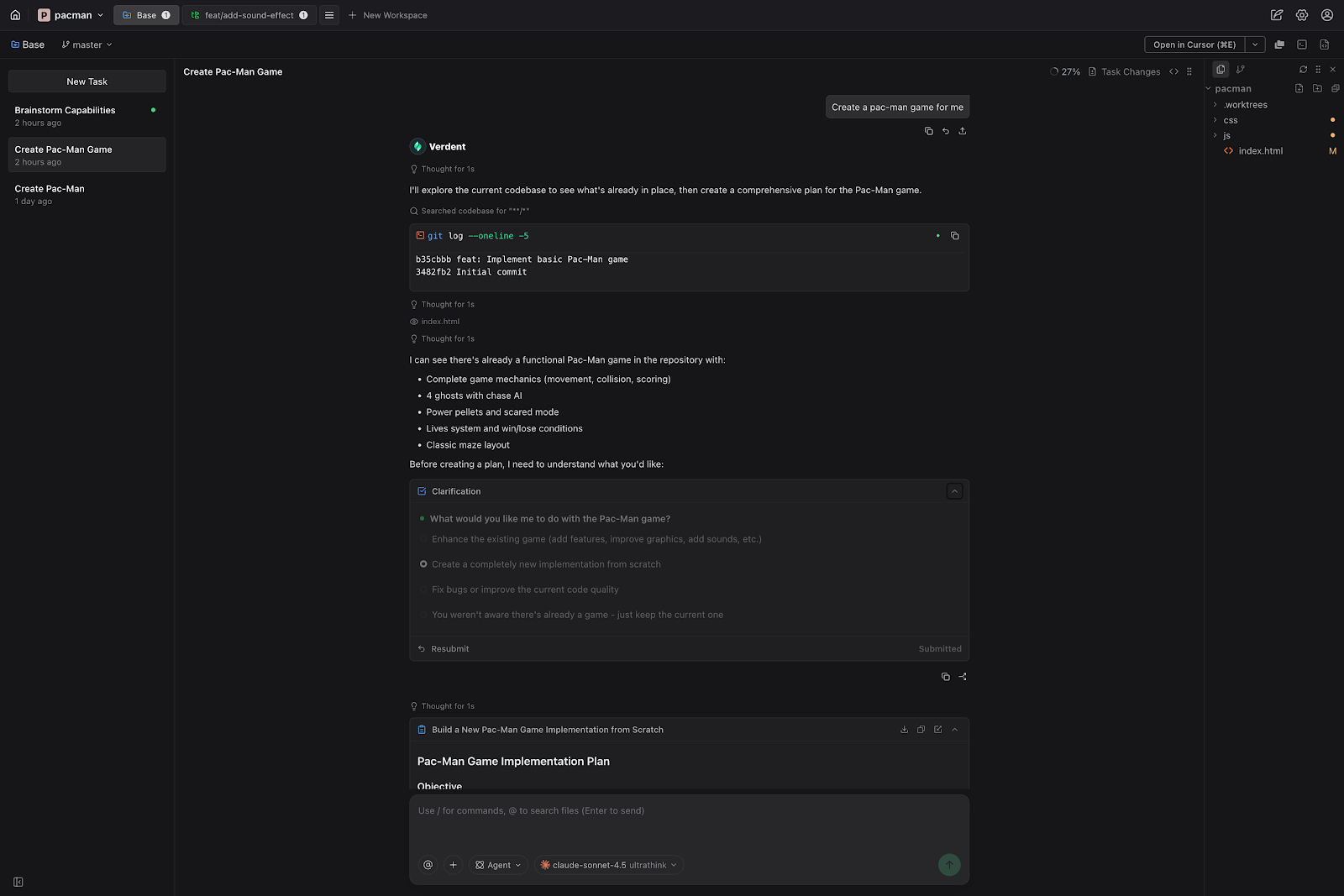
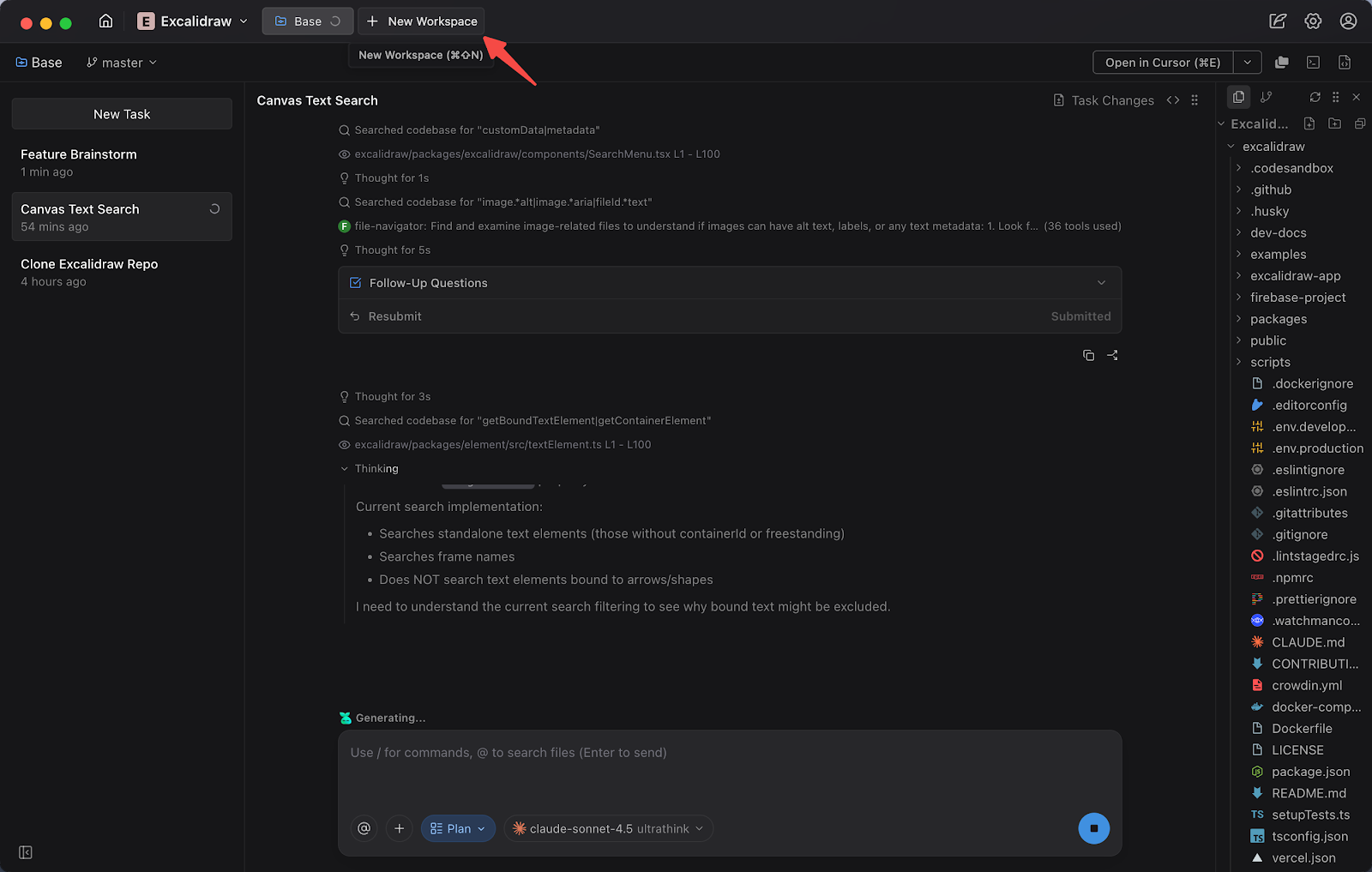
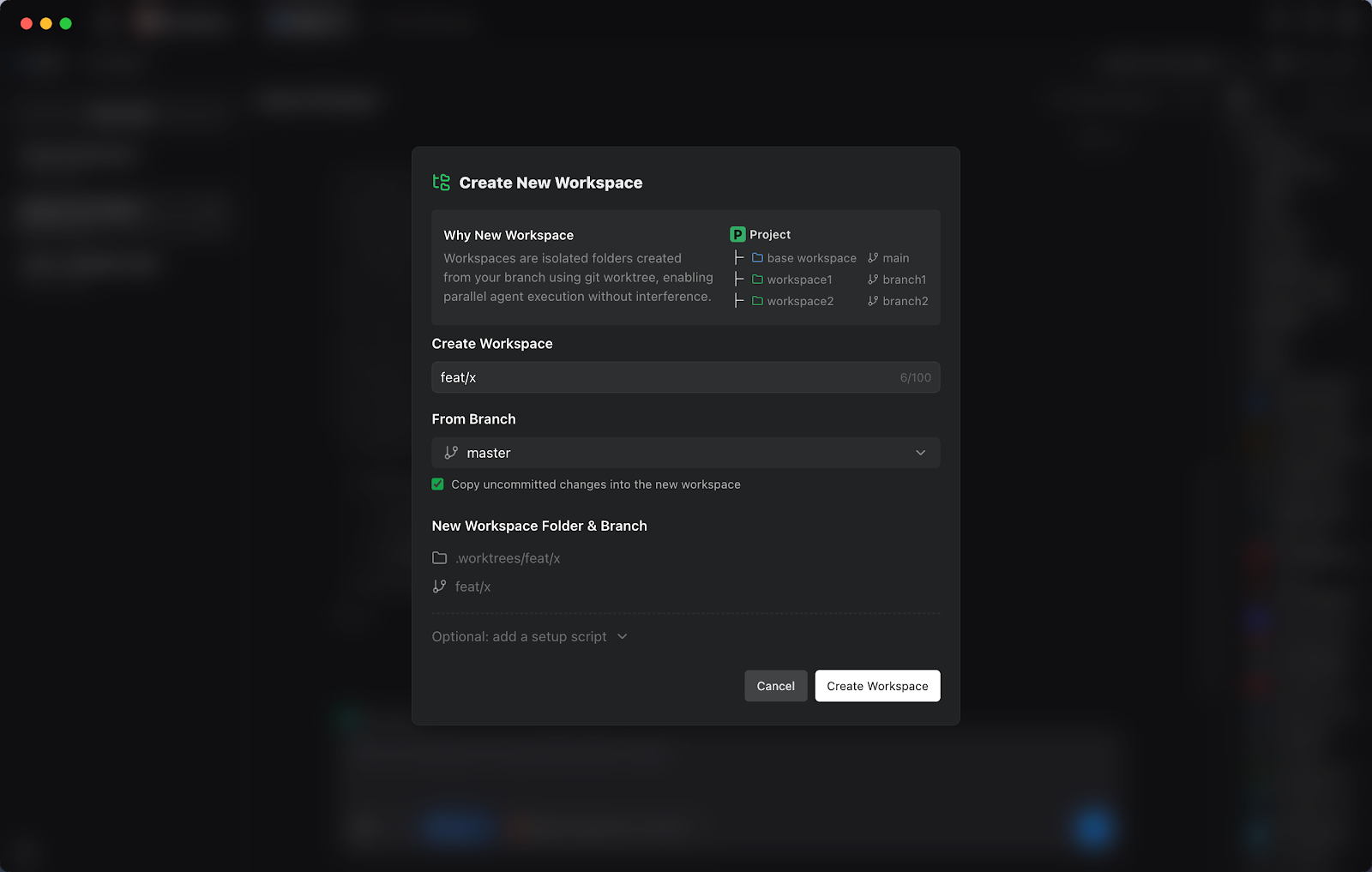
Workspace Types
-
Base Workspace
Your primary working environment on the branch you choose. It’s typically kept clean and stable, and serves as the reference point for integrating completed work. -
Additional Workspaces
Create multiple workspaces from the Base Workspace. Each workspace is isolated, with its own set of code changes, so you can work on different tasks (or different solutions) in parallel without interfering with each other.
Why Workspaces Matter
| Benefit | Description |
|---|---|
| Isolation by Default | Each workspace keeps its own changes separate from others |
| Parallel Development | Work on multiple tasks at the same time, safely |
| Reduced Conflict Risk | Switching between workstreams won’t mix changes or create accidental overlaps |
| Safe Exploration | Try different approaches in separate workspaces and keep only the best outcome |
| Cleaner Integration | Review and integrate workspace results back into the Base Workspace with clarity |
Workspace Management
| Action | Description |
|---|---|
| Create Workspace | Create a new isolated workspace from the Base Workspace |
| Switch Workspace | Move between workspaces instantly without losing progress |
| Sync from main | Bring the latest changes from the main branch into a workspace |
| Merge / Rebase to main branch | Integrate a workspace’s result back into the main branch |
| Delete Workspace | Remove a workspace when it’s no longer needed |
Parallel Execution
Verdent’s defining feature is the ability to run multiple AI agents simultaneously, each in its own isolated workspace.How Parallel Execution Works
Each workspace:- Has its own complete copy of the codebase
- Operates with isolated context
- Cannot interfere with other workspaces
- Produces reviewable, rebaseable changes
When to Use Parallel Execution (Pyro)
| Scenario | Recommended Approach |
|---|---|
| Independent features | Use Pyro — run in parallel with separate Workspaces |
| Bug fixes + feature work | Use Pyro — isolate workstreams in separate Workspaces and run in parallel |
| Sequential dependencies | Avoid Pyro — use a single Workspace and execute tasks sequentially |
| Quick fixes | Usually avoid Pyro — do it in the Base Workspace with a single agent |
Git Worktree Integration
Verdent Workspaces are built on top of Git worktree.You don’t need to understand Git worktree to use Workspaces, but if you want to know the underlying mechanism, this section explains the basics.
What is a Git Worktree?
A Git worktree is a Git feature that lets a single repository have multiple working directories at the same time. In practice, this means:- Shared Git history: all worktrees share the same commit history, branches, and tags
- Separate working state: each worktree has its own working directory state (files, uncommitted changes)
- Branch-per-worktree: a worktree is typically attached to its own branch
- Native Git feature: supported by standard Git tooling and works with all Git hosts
Prerequisites
Workspaces require Git 2.20+ to be installed on your system.See Git Installation if you need to install or upgrade Git.
FAQs
What happens if two agents modify the same file?
What happens if two agents modify the same file?
If two agents run in the same workspace and edit the same file, the result is not deterministic; later writes may overwrite earlier ones. Verdent does not guarantee safe conflict handling inside a single workspace.If you expect two agents might touch the same file, run them in separate workspaces instead. Each workspace is isolated, so both sets of changes are preserved independently. You can then review the results and decide what to keep (for example, merge one workspace and discard the other, or manually combine them).
How many parallel agents can I run?
How many parallel agents can I run?
Verdent doesn’t impose a hard limit. Practical limits depend on:
- System resources: Each agent consumes memory and CPU
- API rate limits: Credit consumption scales with active agents
- Git worktree limits: Git handles many worktrees efficiently
Do workspaces share node_modules and other dependencies?
Do workspaces share node_modules and other dependencies?
What's the difference between a task and a workspace?
What's the difference between a task and a workspace?
- Task: Running an agent to perform work. Multiple tasks run in the same workspace and operate on the same files.
- Workspace: An isolated working environment (Base Workspace or New Workspace) where code changes happen.
Do tasks share context with each other?
Do tasks share context with each other?
Does Verdent work with non-git repositories?
Does Verdent work with non-git repositories?
Yes. If your project doesn’t have Git initialized, Verdent creates its own Git repository for tracking changes and enabling workspace isolation. The worktree feature requires Git, but Verdent handles the setup automatically.
What happens if I delete a workspace with uncommitted changes?
What happens if I delete a workspace with uncommitted changes?
Uncommitted changes are lost. Before deleting a workspace, review changes and rebase any work you want to keep.
How do I discard changes from a task I don't want?
How do I discard changes from a task I don't want?
Use the Discard Changes feature in the Source Control tab, or delete files directly in the Explorer tab.